
Figma pricing looks simple on the surface four plans, a few dollar amounts, done. In practice, most teams end up paying more (or less) than they expect because of two things: seat types and AI credits, both of which quietly stack on top of the sticker price.
This guide breaks down exactly what Figma costs in 2026, what each plan and seat type actually includes, where the hidden costs hide, and how to trim your bill without losing the features you actually use.
Figma restructured its pricing and seat model a while back, and by now virtually every customer has moved onto the current structure new sign-ups land on it automatically. That means the numbers below reflect what you’ll actually see if you sign up or renew today, not legacy pricing some older accounts might still be grandfathered into.
TL;DR — Which Figma Plan Should You Choose?
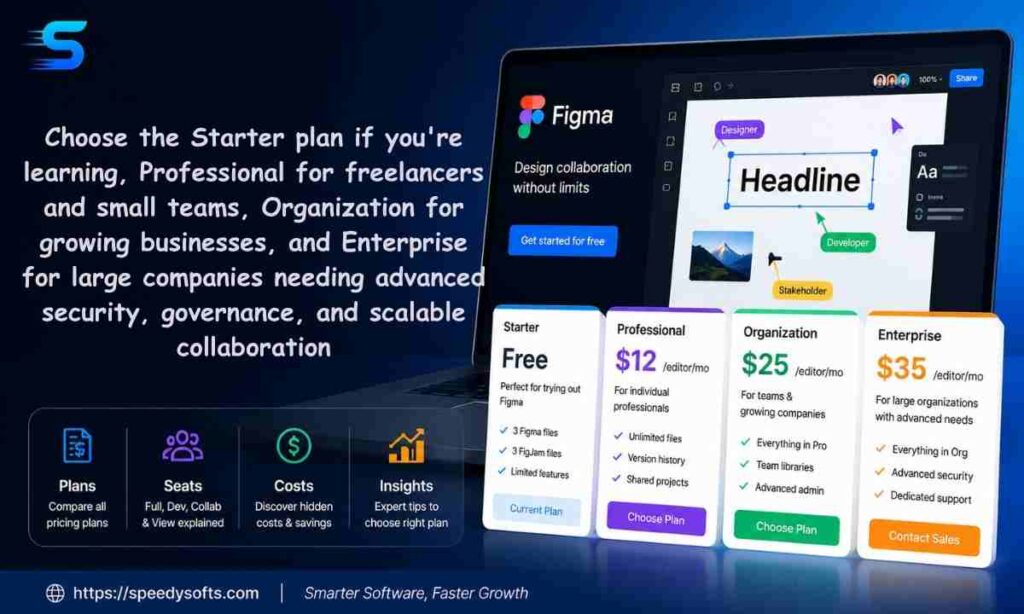
If you just want the short answer before the details, here it is.
Best Plan for Individuals
The free Starter plan covers almost every solo use case unlimited drafts, UI kits, templates, and a daily AI credit allowance. Upgrade only once you need more than a handful of active files or want team libraries.
Best Plan for Freelancers
Professional is the sweet spot. At $16/month per Full seat, you get unlimited files and projects, team libraries, and advanced Dev Mode everything a freelancer needs to hand off polished work to clients.
Best Plan for Startups
Also Professional, at least early on. Mix Full seats for designers with cheaper Dev and Collab seats for developers and stakeholders. Move to Organization once you need multiple teams or basic security controls like SSO.
Best Plan for Large Teams
Organization or Enterprise, depending on your security needs. Organization covers unlimited teams and centralized admin tools; Enterprise adds SSO, SCIM provisioning, and custom workspaces for larger, security-conscious companies.
Quick Decision Table
| Your Situation | Recommended Plan |
| Solo designer or student | Starter (Free) |
| Freelancer with clients | Professional |
| Small team (2–15 people) | Professional |
| Growing company, multiple teams | Organization |
| Enterprise with SSO/security needs | Enterprise |
Figma Pricing at a Glance (2026)
Figma prices its paid plans per seat, per month, with three seat types Full, Dev, and Collab priced differently on every tier. Viewers are always free.
Figma Pricing 2026 Per Month
- Starter: Free
- Professional: $16/mo (Full seat), $12/mo (Dev seat), $3/mo (Collab seat)
- Organization: $55/mo (Full seat), $25/mo (Dev seat), $5/mo (Collab seat) — billed annually
- Enterprise: $90/mo (Full seat), $35/mo (Dev seat), $5/mo (Collab seat) — billed annually
Monthly vs Annual Pricing
Professional is the only tier that offers both monthly and annual billing. Organization and Enterprise are annual-only there’s no month-to-month option, so if you want to pilot Figma before committing to either tier, start on Professional first.
Complete Pricing Table
| Plan | Full Seat | Dev Seat | Collab Seat | Billing |
| Starter | Free | — | — | N/A |
| Professional | $16/mo | $12/mo | $3/mo | Monthly or annual |
| Organization | $55/mo | $25/mo | $5/mo | Annual only |
| Enterprise | $90/mo | $35/mo | $5/mo | Annual only |
Which Plan Gives the Best Value?
For most individuals and small teams, Professional delivers the best dollar-for-dollar value unlimited files, team libraries, and advanced prototyping for a fraction of what Organization or Enterprise charge. You only get real added value from the higher tiers once you genuinely need cross-team governance, SSO, or design system controls at scale.
It’s worth resisting the urge to future-proof your plan choice too aggressively. Jumping straight to Organization “just in case” you grow into needing it means paying $55/month per Full seat today for features you may not touch for a year or more. Upgrading later, once the need is concrete, almost always works out cheaper overall.
Figma Plans Compared (Free vs Professional vs Organization vs Enterprise)
Starter (Free)
Figma’s free tier is genuinely usable, not just a stripped-down trial. It includes unlimited drafts, access to UI kits and community templates, and a daily AI credit allowance (150/day, up to 500/month). The catch is a practical file limit for teams it’s built for individuals, not collaborative teams juggling many active projects.
Professional
Professional is where Figma becomes a real team tool. It unlocks unlimited files and projects, team-wide design libraries, and advanced Dev Mode inspection. It’s priced per seat, with Full seats at $16/month, and is the only tier that lets you pay monthly instead of committing to a year upfront.
Organization
Organization is built for businesses designing across multiple internal teams. It adds unlimited teams, shared libraries and fonts across the whole organization, and centralized admin tools but it’s billed annually only, and Full seats jump to $55/month.
Figma Enterprise Pricing
Enterprise is Figma’s top tier, aimed at companies managing multiple products or brands with strict security requirements. Full seats run $90/month (annual only), and it adds custom team workspaces, design system theming and APIs, and SCIM-based seat management for large-scale provisioning.
Feature Comparison Table
| Feature | Starter | Professional | Organization | Enterprise |
| Unlimited files/projects | Limited | Yes | Yes | Yes |
| Team libraries | No | Yes | Yes | Yes |
| Dev Mode | Basic | Advanced | Advanced | Advanced + SCIM |
| Unlimited teams | No | No | Yes | Yes |
| SSO | No | No | No | Yes |
| Branching & merging | No | No | Yes | Yes |
| Monthly billing option | N/A | Yes | No | No |
| AI credits (Full seat) | 500/mo | 3,000/mo | 3,500/mo | 4,250/mo |
Which Plan Should You Choose?
Start with the simplest plan that solves today’s problem, not the one that might solve a problem you’ll have in two years. Most individuals and small teams never need to leave Professional; most teams that do move up are chasing SSO, cross-team libraries, or compliance requirements not extra design features.
Figma Seat Types Explained
This is where most of Figma’s real cost decisions happen. Getting seat assignment wrong is the single most common way teams overpay.
What Is a Full Seat?
A Full seat gives complete access to every Figma product Figma Design, Figma Make, Figma Draw, Figma Sites, Dev Mode, FigJam, Figma Slides, and Figma Buzz. This is the seat type actual designers need.
Figma Full Seat Price
- Professional: $16/mo
- Organization: $55/mo
- Enterprise: $90/mo
What Is a Dev Seat?
A Dev seat is built for developers who need to inspect and implement designs but don’t create them. It includes full access to Dev Mode, FigJam, Figma Slides, and Figma Buzz, plus view and comment access in Figma Design files.
Figma Dev Seat Pricing
- Professional: $12/mo
- Organization: $25/mo
- Enterprise: $35/mo
What Is a Collab Seat?
A Collab seat suits product managers, marketers, or stakeholders who brainstorm and present but never design directly. It includes full access to FigJam, Figma Slides, and Figma Buzz, with view/comment access in Design files and only basic inspection in Dev Mode.
Figma Collab Seat
- Professional: $3/mo
- Organization: $5/mo
- Enterprise: $5/mo
What Is a View Seat?
A View seat isn’t really a paid seat at all it’s free on every plan. Viewers can open files, leave comments, and use basic inspection in Dev Mode without ever needing a purchased seat, which makes it easy to bring in clients or executives without adding to your bill.
Full Seat vs Dev Seat vs Collab Seat vs View Seat
| Seat Type | Can Design | Dev Mode Access | FigJam/Slides/Buzz | Cost |
| Full | Yes | Advanced | Full | Highest |
| Dev | No (view/comment only) | Full | Full | Mid |
| Collab | No (view/comment only) | Basic only | Full | Low |
| View | No (view/comment only) | Basic only | No | Free |
Common Seat Assignment Mistakes
- Giving every team member a Full seat “just in case.” Most developers and stakeholders never need to design a Dev or Collab seat covers their actual workflow for a fraction of the price.
- Forgetting unassigned seats still count. After account or plan migrations, some teams end up with unassigned Collab seats left on the bill, since removal isn’t automatic.
- Not auditing seats at renewal. Seats added mid-cycle stay on your invoice until someone actively removes them a quick quarterly review can catch a lot of quiet overspending.
- Assuming seat type is permanent. Roles change a Collab-seat stakeholder who starts contributing design work needs upgrading, and a Full-seat designer who moves into a purely reviewing role can often be downgraded without losing anything they actually use.
Figma Dev Mode Pricing
What Is Dev Mode?
Dev Mode is Figma’s dedicated handoff experience for developers it surfaces measurements, exportable code snippets, component properties, and integrates with tools like VS Code so engineers can move from design to implementation faster.
Figma Dev Mode Free
Basic inspection — viewing measurements, copying CSS or code properties, and exporting assets — is available for free to anyone with view access, even without a paid seat.
Paid Dev Mode Features
A dedicated Dev seat unlocks advanced inspection, the ability to mark items ready for dev, compare changes between versions, use the component playground, and connect via the Dev Mode MCP server for AI coding agent workflows.
Is Dev Mode Worth Paying For?
If your developers only need to occasionally glance at a design, free basic inspection is often enough. If they’re implementing designs daily and need a structured handoff workflow, a Dev seat at $12–$35/month (depending on plan tier) pays for itself quickly in saved back-and-forth with designers.
A useful middle-ground test: track how often a developer actually opens Dev Mode over a two-week period. If it’s a daily habit tied to active sprint work, the upgrade is worth it. If it’s an occasional check-in once or twice a week, free viewer access is probably still enough.
Figma Make Pricing Explained
What Is Figma Make?
Figma Make lets you prompt your way to a functional prototype or working app, using either a text description or an existing Figma design as a starting point. It’s aimed at turning static designs into interactive, shippable software faster.
Figma Make Pricing
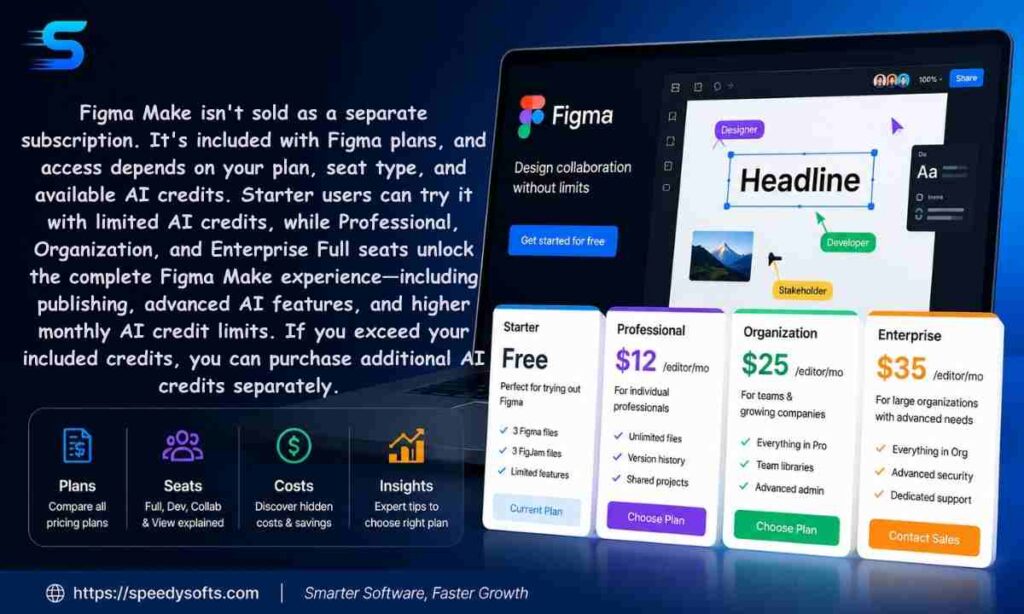
Figma Make isn’t sold as a separate subscription it’s bundled into every paid plan and consumes your seat’s monthly AI credit allowance. Full seats get the largest allowance; other seat types share a smaller pool.
Figma Make Credits Pricing
Since Figma Make draws from the same shared AI credit system as the rest of Figma’s AI features, heavier use generating full prototypes rather than small tweaks burns through your monthly allowance faster.
AI Credits Explained
Every seat on every plan includes a monthly AI credit allotment, shared across all of Figma’s AI features (design productivity tools, image editing, Figma Make, and more):
- Starter: 150/day, up to 500/month
- Professional Full seat: 3,000/month
- Organization Full seat: 3,500/month
- Enterprise Full seat: 4,250/month
- All other seat types (Collab, Dev, View): 500/month
How AI Credits Are Calculated
The exact number of credits a request consumes varies depending on the feature and complexity of the task a simple layer rename costs far less than generating a full working prototype through Figma Make.
Can You Buy More AI Credits?
Yes. If your team regularly exhausts its included allowance, Figma sells additional AI credits as a purchasable add-on, shared across your whole team worth budgeting for if you lean heavily on AI features.
Real Figma Cost Examples
Solo Designer
A single freelancer using the free Starter plan pays $0/month, as long as they stay within the file limit and don’t need team libraries.
Freelancer
A freelancer handling client work on Professional with one Full seat pays $16/month (or slightly less annually), unlocking unlimited files and team libraries for client handoff.
Startup Team
A startup with 5 designers (Full seats) and 3 developers (Dev seats) on Professional pays roughly 5 × $16 + 3 × $12 = $116/month — not the $128/month you’d get by assuming everyone needs a Full seat.
Agency
A 15-person agency mixing 8 Full seats, 4 Dev seats, and 3 Collab seats on Professional pays approximately 8 × $16 + 4 × $12 + 3 × $3 = $185/month, a significant saving over defaulting everyone to Full seats.
Enterprise Company
A 50-person Enterprise deployment with 30 Full seats, 15 Dev seats, and 5 Collab seats pays roughly 30 × $90 + 15 × $35 + 5 × $5 = $3,250/month, billed annually a genuinely large commitment that requires careful seat planning up front.
Hidden Costs Most Teams Miss
Extra Full Seats
Assigning Full seats to people who only ever comment or present is the single biggest source of overspending swapping unnecessary Full seats for Dev or Collab seats can cut costs dramatically.
AI Credit Charges
Teams that lean heavily on Figma Make or AI image editing can burn through their included credit allowance and end up paying for additional credits as an ongoing add-on cost, not a one-time fee.
Dev Seat Upgrades
As Dev Mode usage grows, some teams quietly upgrade multiple developers from free viewer access to paid Dev seats without recalculating the cumulative monthly impact across the whole team.
Annual Billing Lock-in
Organization and Enterprise plans require a full year’s commitment with no monthly escape hatch, meaning a rollout you outgrow or don’t fully use still gets billed for the full term.
Seat Management Mistakes
Seats added mid-cycle on annual plans get billed separately (Professional) or added to your next invoice with prorated pricing (Organization/Enterprise) and they stay on the bill until someone actively removes them, even if the person who requested access never ends up using it.
How to Reduce Your Figma Costs
Choose the Right Seat Types
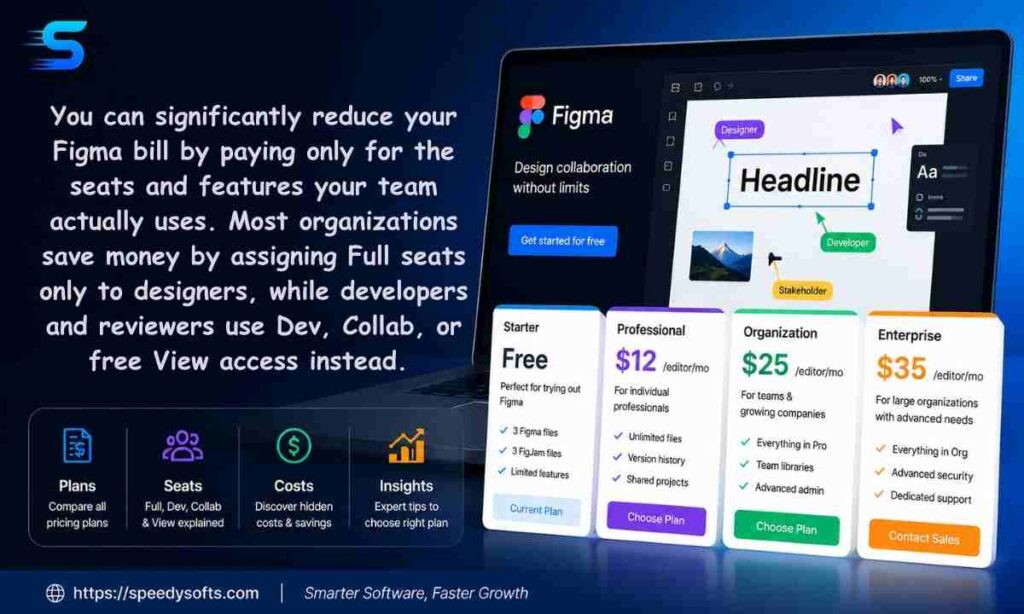
Before renewing or adding anyone new, ask what they actually do in Figma. Someone who only comments and reviews should almost never get a Full seat.
Remove Unused Seats
Run a quarterly audit of your Admin Dashboard and remove seats assigned to people who’ve left the team or stopped actively using the product.
Use Dev Seats Instead of Full Seats
For developers who implement designs but don’t create them, a Dev seat covers the entire workflow Dev Mode, FigJam, Slides, and Buzz at a fraction of a Full seat’s price.
Annual Billing Savings
If you’re confident in your seat count for the year ahead, switching Professional from monthly to annual billing typically saves a meaningful percentage compared to paying month to month.
Billing & Subscription Guide
Monthly vs Annual Billing
Only Professional offers monthly billing; Organization and Enterprise require an annual commitment with no month-to-month alternative.
Proration Explained
On Professional, new seats added mid-term are billed separately at the monthly rate, prorated from the approval date through the end of that billing cycle. On Organization and Enterprise, new seats are added to your next invoice with prorated annual pricing and then billed quarterly going forward.
Upgrading Plans
You can change your plan tier and adjust seat types directly from Admin > Billing on Professional. Upgrades are typically prorated so you’re only charged the difference for the remainder of your term.
Downgrading Plans
On Professional, downgrades or cancellations happen directly in your Admin Dashboard. On Organization or Enterprise, you’ll need to contact Figma’s sales team and to avoid paying for another full term, make changes before your renewal date.
Canceling Subscription
Professional subscriptions can be canceled anytime through the Admin Dashboard. Organization and Enterprise cancellations require going through Figma’s sales or account team, since they’re structured as annual contracts.
Refund Policy
Figma doesn’t broadly advertise pro-rated refunds for early cancellation on annual plans the safest approach is to time any downgrade or cancellation to land just before your renewal date rather than mid-term.
Figma Discounts & Free Programs
Education Pricing
Figma offers free or heavily discounted access for verified students and educators effectively giving academic users Professional-level features at no cost.
Nonprofit Discounts
Eligible nonprofit organizations can apply for reduced Figma pricing; reaching out to Figma’s sales team directly is the fastest way to confirm current eligibility and terms.
Student Plans
Students with a verified academic email typically qualify for free access to Professional features worth claiming early if you’re studying design or development.
Startup Credits
Some early-stage startups can access discounted pricing through partner programs, often bundled with credits from accelerators, incubators, or cloud partners Figma works with.
Best Figma Alternatives
| Tool | Best For | Free Plan | Key Advantage |
|---|---|---|---|
| Penpot | Open-source teams | ✅ Yes | Free, self-hostable, browser-based collaboration (UIGuides) |
| Sketch | macOS designers | ❌ Trial | Native Mac performance and mature design system tools (UIGuides) |
| Framer | Designers building websites | ✅ Yes | Design, prototype, and publish live websites from one platform (AISO Tools) |
| UXPin | Enterprise teams | ✅ Limited | Code-backed components for developer handoff (AISO Tools) |
| Lunacy | Windows & offline users | ✅ Yes | Works offline and supports opening Figma files (AISO Tools) |
| Canva | Beginners & marketers | ✅ Yes | Fast template-based design with AI tools (AISO Tools) |
| Webflow | No-code website creation | ✅ Limited | Turn designs into production-ready websites with CMS support (AISO Tools) |
Adobe XD
Adobe XD is effectively discontinued as of 2026 it remains available in maintenance mode for existing Creative Cloud subscribers, but Adobe has stopped active feature development and no longer sells it as a standalone product. It’s not a safe long-term choice for new projects.
Sketch
Sketch remains a solid Mac-only alternative, particularly for designers who prefer a more traditional, file-based workflow over Figma’s fully browser-based approach, though it lacks Figma’s real-time multiplayer editing.
Penpot
Penpot is a genuinely open-source design tool, appealing to teams wary of vendor lock-in or who want to self-host their design infrastructure entirely.
Canva
Canva leans more toward marketing and social content than product design, but its simplicity makes it a reasonable pick for non-designers who need quick, polished visuals without a learning curve.
Framer
Framer blends design and publishing, letting teams go from a design file to a live, responsive website faster than exporting and rebuilding in a separate development stack.
Figma vs Competitors
Figma vs Adobe XD
Figma wins by default here with XD in maintenance mode and no further development planned, Figma is the safer, actively developed choice for any new project.
Figma vs Sketch
Sketch is a capable alternative for Mac-only teams that don’t need real-time collaboration, but Figma’s browser-based multiplayer editing gives it a clear edge for distributed teams.
Figma vs Framer
Figma is stronger for pure design and prototyping depth; Framer pulls ahead if your priority is publishing a finished, responsive website directly from your design work.
Figma vs Canva
Canva is faster for simple marketing graphics and social posts; Figma is the better tool once you need structured design systems, developer handoff, or serious UI/UX work.
Which One Offers Better Value?
For teams doing genuine product design work, Figma’s Professional tier remains the strongest value overall the combination of collaboration, prototyping depth, and developer handoff tools isn’t matched dollar-for-dollar by any of the alternatives above.
Is Figma Worth the Price in 2026?
For Designers
Yes Professional’s unlimited files, team libraries, and advanced prototyping tools comfortably justify the $16/month Full seat price for anyone doing serious design work.
For Developers
Largely yes, though it depends on usage. Occasional handoff needs are covered by free viewer access; developers implementing designs daily will get real value from a paid Dev seat.
For Startups
Yes, especially with disciplined seat management mixing Full, Dev, and Collab seats keeps costs proportional to team size rather than ballooning as headcount grows.
For Enterprises
Yes, if you genuinely need SSO, SCIM provisioning, and organization-wide design system governance but the jump to Enterprise pricing should be driven by real security and scale requirements, not just team size alone.
If you’re interested in building design tools, web apps, or AI-powered software, check out our guide on the Best Programming Languaghttps://speedysofts.com/best-programming-language-to-learn/e to Learn.
Frequently Asked Questions
How much does Figma cost per month?
Figma ranges from free (Starter) to $90/month per Full seat on Enterprise, with Professional starting at $16/month per Full seat.
What is the cheapest Figma plan?
The Starter plan is completely free and covers most individual and student use cases without any file-limit surprises for casual use.
Is Figma free forever?
Yes the Starter plan has no expiration date, though it has practical limits on active files that push growing teams toward a paid tier.
Does Dev Mode require payment?
Basic inspection is free for anyone with view access. Advanced Dev Mode features require a paid Dev seat or a Full seat.
Can developers use Figma for free?
Yes, for basic inspection and viewing. Developers doing daily implementation work will get more value from a paid Dev seat.
What’s included in a Full Seat?
A Full seat includes complete access to Figma Design, Figma Make, Figma Draw, Figma Sites, Dev Mode, FigJam, Figma Slides, and Figma Buzz.
What is a Collab Seat?
A Collab seat gives full access to FigJam, Slides, and Buzz, plus view/comment access in Design files ideal for PMs and stakeholders who don’t design directly.
How do AI credits work?
Every seat gets a monthly AI credit allotment shared across Figma’s AI features; heavier feature use like Figma Make consumes more credits per request.
Can I switch plans anytime?
On Professional, yes, directly from your Admin Dashboard. Organization and Enterprise changes require contacting Figma’s sales team.
Does Figma offer student discounts?
Yes verified students and educators can access Professional-level features for free through Figma’s education program.
Which Figma plan is best for freelancers?
Professional, since it unlocks unlimited files and team libraries needed for client handoff at an affordable per-seat price.
Which Figma plan is best for startups?
Professional to start, with a mixed seat strategy moving to Organization only once multiple teams or basic security controls become necessary.
Which Figma plan is best for enterprises?
Enterprise, specifically for organizations that need SSO, SCIM provisioning, and centralized governance across multiple products or brands.
Final Verdict: Which Figma Plan Should You Choose in 2026?
For the vast majority of individuals, freelancers, and small teams, Professional remains the clear sweet spot in 2026 unlimited files, team libraries, and solid Dev Mode access at a genuinely affordable per-seat price. Most people overspend not by picking the wrong plan tier, but by assigning the wrong seat type to people who don’t actually need one.
If you’re scaling past a handful of teams or need real security controls like SSO, Organization or Enterprise earns its higher price tag. Either way, the real lever for controlling your Figma bill isn’t which plan you pick it’s making sure every seat you’re paying for actually matches how that person works.
Before your next renewal, it’s worth spending twenty minutes in your Admin Dashboard auditing exactly who has which seat type and why. For most teams, that single review uncovers more savings than switching plans ever will.
For more on how AI tools are reshaping creative workflows beyond design software, check out our roundup of the best AI photo editing tools in 2026. For the most current, official pricing details, always confirm directly on Figma’s pricing page, since plans and seat allowances can change.

Finally a platform that handles my preferred payment methods without any friction. The game library is massive and the customer team responds within minutes. I stick around for the quick transactions and fair gameplay. khelostarlogin
The whole setup here has this warm neighborhood energy that makes me want to stay around. Tables are always full the chat feels lively and I never feel rushed or ignored. It is refreshing to find a place that treats players like actual neighbors instead of just numbers. comonopolycasino
Fishing games usually feel repetitive but the mechanics here are so smooth. I enjoy chasing the big bosses and the payout rates actually keep me coming back. It is the perfect way to unwind after a long shift. aricefishing
[352713]supplies professional anti-violence equipments and solutions for the whole world with strong and perfect production capacity. anti-violence.org
The game selection is amazing and the bonuses are a huge plus for new players. I am having a blast on brb777games.
Super easy to navigate and the interface is very user friendly. Great experience so far for a local player. 369jllogin
The community here is great and the rewards keep me coming back. It is easily one of the most reliable spots online. Visit ph90jiliclub
I felt really lucky playing here today. The registration process was quick and the games are top-notch. Five stars for lucky53game.
Easy to navigate and the odds are very competitive. If you are into sports and slots then autobolalogin is the way to go.
The app installation was a breeze and the login process is super fast. It makes the whole experience much more convenient on mobile. superlgloginappapk
The APK installation was super simple and the app runs perfectly on my Android. No crashes so far. Get betwinerapk and start winning!
Just stumbled across aa8881 and decided to give it a whirl. Gotta say, the layout is pretty appealing. Let’s see how it goes! Check it out aa8881
The VIP treatment here is real. I feel valued as a player and the rewards are generous. I am staying with vipjilislot
Honestly one of the best platforms I have used lately. The registration was a breeze and I started playing in minutes. Visit 9777bdgame now.
Really impressed with the customer support here. They answered my questions almost instantly. Highly recommend giving bdjoya9official a shot.